
Installation
System Requirements
- macOS 15 (Sequoia) or later
- Screen Recording permission (prompted on first launch)
- Universal binary — runs natively on both Apple Silicon and Intel Macs
Homebrew (recommended)
brew tap yusufk/tap
brew trust yusufk/tap
brew install --cask zoomacit
TIP
brew trust is required on Homebrew 4.x+ before installing casks from a third-party tap. To trust only this cask instead of the whole tap, run brew trust --cask yusufk/tap/zoomacit.
The cask removes the quarantine flag for you, so no extra steps are needed.
Manual Download & Install
- Download the latest
.dmgfrom the Releases page - Open the
.dmgfile and drag ZoomacIt.app to the Applications folder - Open ZoomacIt from Applications
Removing the Quarantine Flag
If you installed manually and see the warning "Apple could not verify 'ZoomacIt' is free of malware that may harm your Mac or compromise your privacy", run the following command in Terminal to remove the quarantine flag:
xattr -cr /Applications/ZoomacIt.appWARNING
Please review the source code and run at your own risk.
Granting Screen Recording Permission
On first launch, macOS will prompt you to grant Screen Recording permission. This is required for the Zoom feature to capture the screen.
- Click Open System Settings when prompted
- Toggle ZoomacIt on in Privacy & Security → Screen Recording
- Restart ZoomacIt if needed
TIP
Screen Recording is the only permission ZoomacIt requires. No Accessibility permission is needed.
Launching
ZoomacIt runs as a menu bar app — there is no Dock icon. After launching, you will see the ZoomacIt icon in your menu bar.
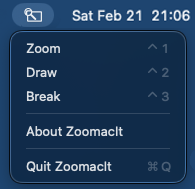
From here you can:
- Launch Zoom, Draw, or Break Timer from the menu
- Open Settings to customize hotkeys and preferences
- Or simply use the default hotkeys: ⌃1 (Zoom), ⌃2 (Draw), ⌃3 (Break Timer)